Changelog

Follow new updates and improvements to Callbell.

πŸ€–β“ New bot action: Ask a question

Setting up questions in the bot builder just got a lot simpler. The new Ask a question action lets you configure everything in one place, instead of manually connecting multiple actions together.
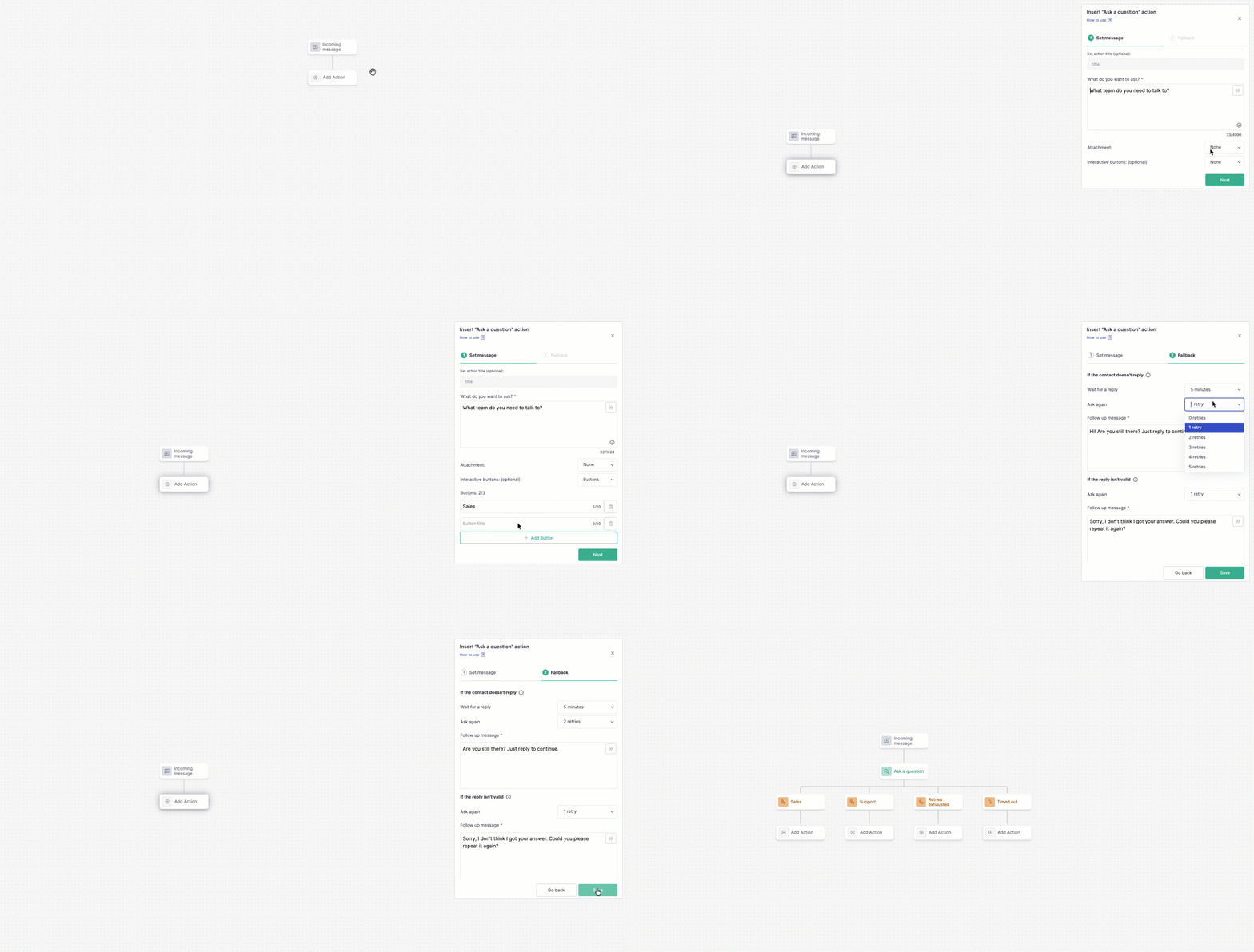
In a single action you can set up:

  • The message to send to the user

  • Buttons or a list (optional): add them to open a specific output for each option

  • Scheduled follow-ups: how long to wait, how many reminders to send, and what message to send

  • Error handling: the error message and maximum number of retries before moving to the error path

The action automatically creates the right nodes in your bot flow: one output per button or list option, or a single "Answered" output when no buttons or list are set, plus the error path and scheduled fallback. No need to build that logic manually anymore.

Learn more here.

New

TikTok Direct 🎡

You can now connect your TikTok Business account to Callbell and manage TikTok Direct Messages from the same inbox you already use for your other channels.

Once connected, TikTok conversations work like any other chat in Callbell. Your team can reply to customers, assign conversations, add tags, write internal notes, and use automations without switching between platforms.

How to get started

  1. Go to Settings β†’ Channels.

  2. Select TikTok.

  3. Connect your TikTok Business account.

  4. Start receiving and replying to TikTok Direct Messages from Callbell.

The TikTok integration is available for all plans that support additional channels.

Learn more about the setup process in our Help Center.

Team Callbell πŸ›ŽοΈ

New

Survey Satisfaction - CSAT

You can now send CSAT (Customer Satisfaction) surveys directly from a bot or automation action to measure customer satisfaction. Responses are stored in Callbell and can be analyzed in the analytics section.

How to use

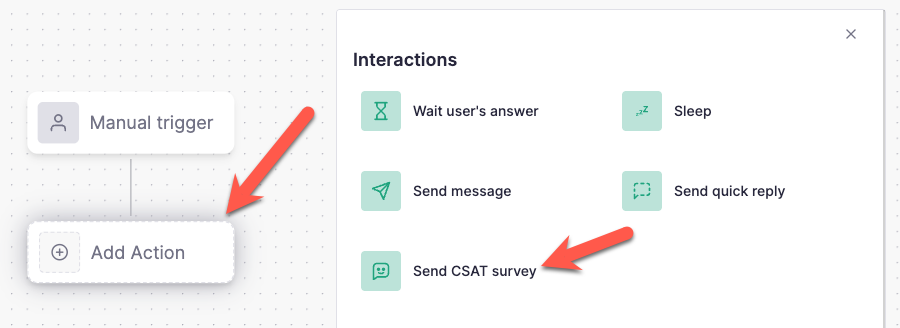
When creating or editing a Bot or Automation, add a new action and select β€œSend CSAT Survey”.

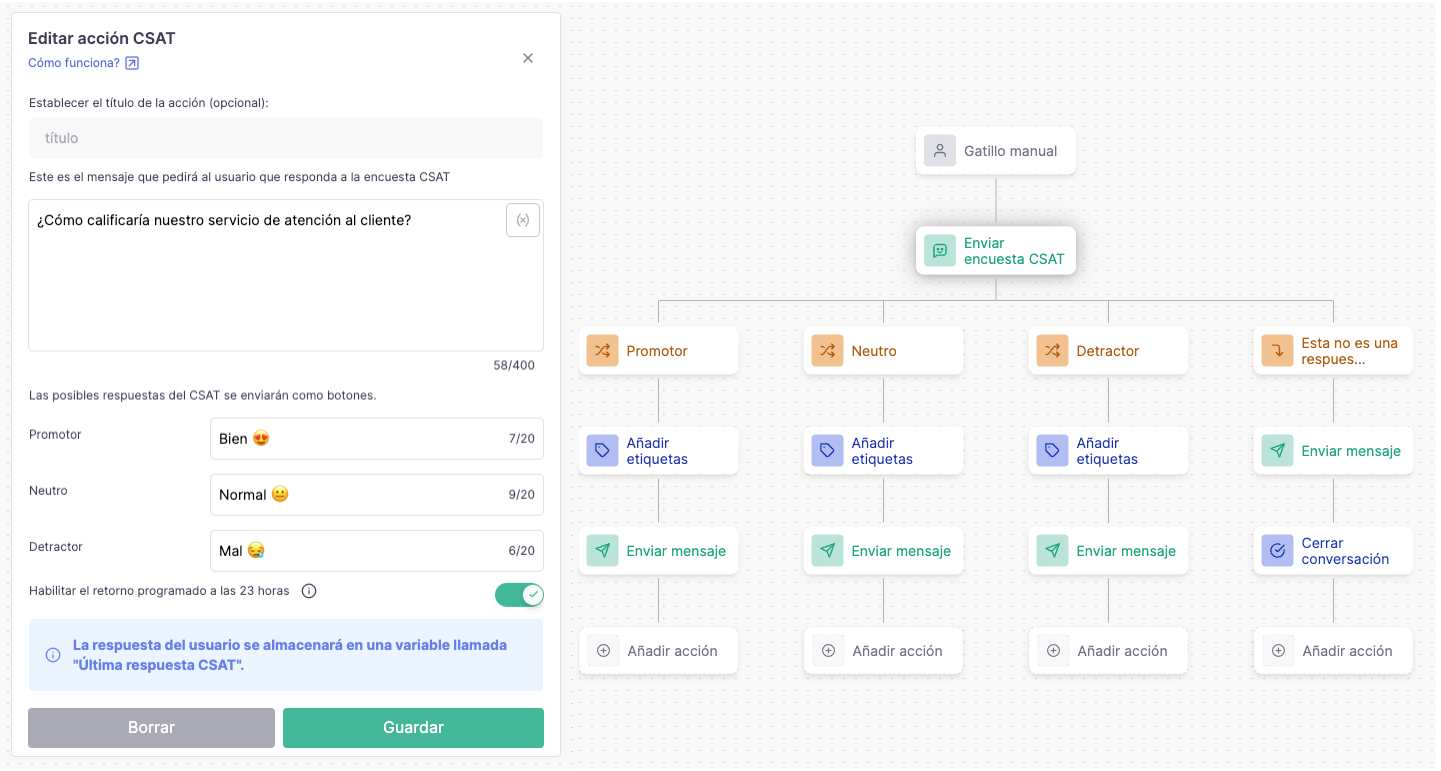
Customize the message text and the three response buttons that users will see. You can also enable an option to automatically close the survey after 23 hours if the user doesn’t respond.

Best practices

You can fully customize the CSAT follow-up actions. We recommend adding a tag the chat based on the response (Promoter, Neutral, or Detractor) so you can easily segment customers for future campaigns.

You can also add follow-up messages, such as:

  • Thanking users for their feedback

  • Asking promoters for a public review

  • Requesting more details from detractors

Since the survey uses interactive buttons, the CSAT action is not compatible with the QR Code integration. All official channels are supported.

How to send the survey

The survey can be sent by the agent triggering an automation (Learn more here). Currently, it's not possible to trigger it automatically when the chat is closed, but we plan to launch this feature in the future (vote here).

Analytics

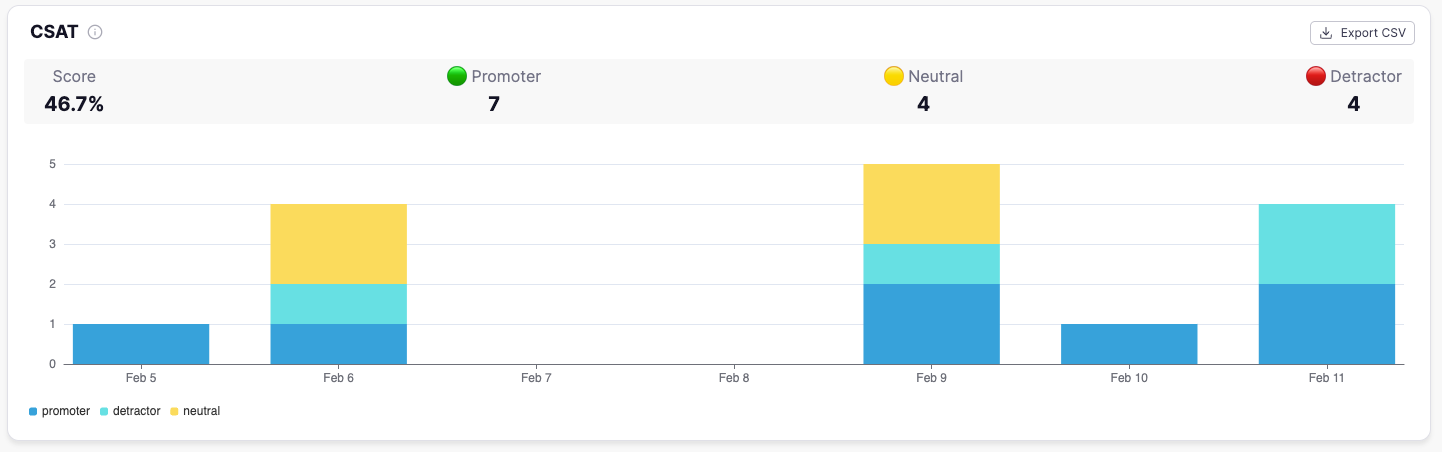
Once you get your first response, a new chart will be available in the Performance tab: https://dash.callbell.eu/analytics/performance

The chart shows the total number of Promoters, Neutrals, and Detractors. The CSAT score is calculated as the percentage of Promoters.

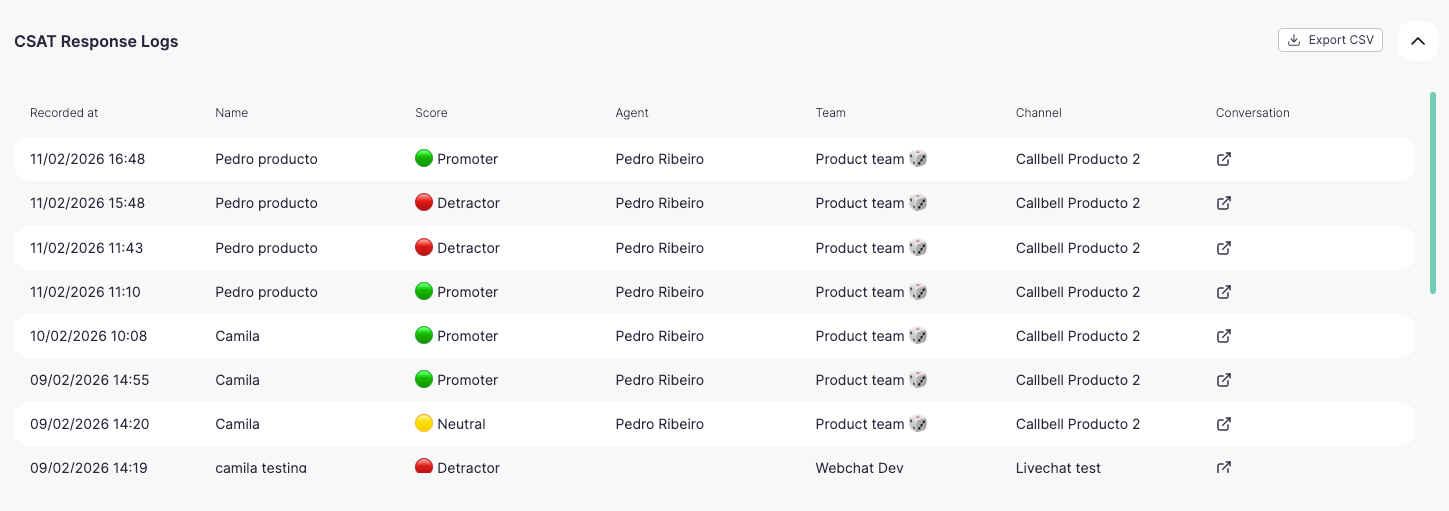
A table with all responses is also available, allowing you to export the contact list and results.

Let us know if you have any questions πŸ™‚

New

Earlier updates